|
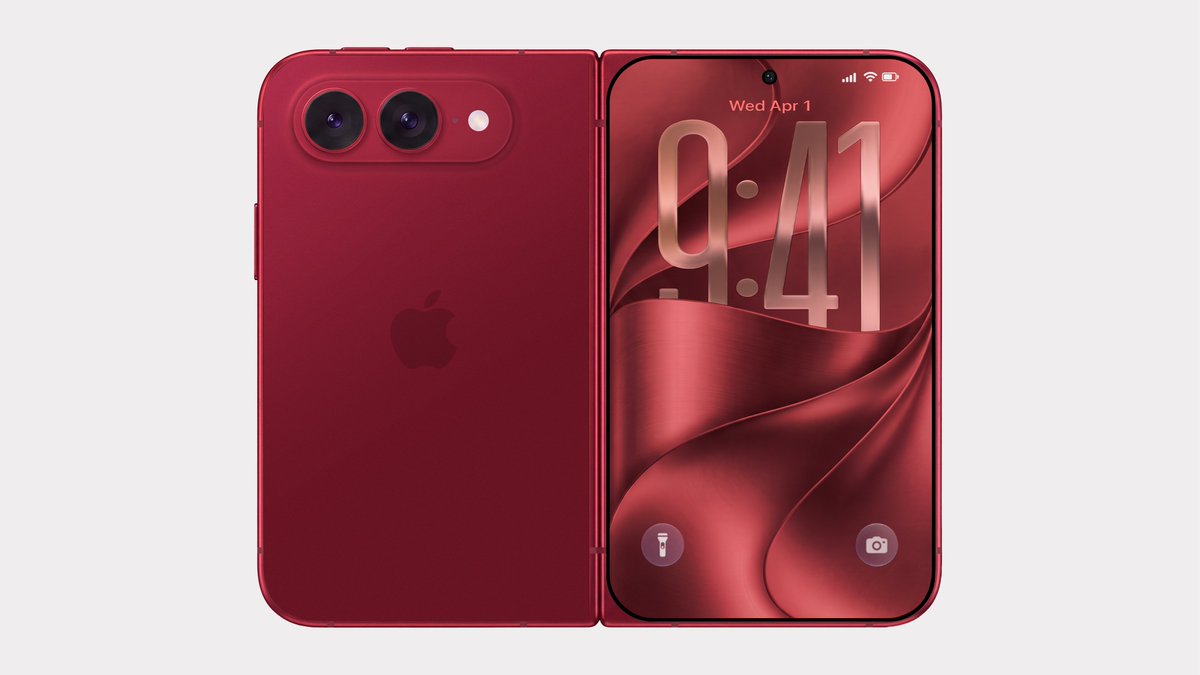 Bloomberg's Mark Gurman has disputed the authenticity of iPhone Ultra renders shared by the usually reliable leaker Evan Blass on X (Twitter). The images show the unreleased foldable iPhone in not just the rumored space gray and white colors, but also in a striking red. Bloomberg's Mark Gurman has disputed the authenticity of iPhone Ultra renders shared by the usually reliable leaker Evan Blass on X (Twitter). The images show the unreleased foldable iPhone in not just the rumored space gray and white colors, but also in a striking red.
|
|

In this article, we explore the top 10 AI tools that are
driving innovation and efficiency in various industries. These tools are
designed to automate repetitive tasks, improve workflow, and increase
productivity. The tools included in our list are some of the most advanced and
widely used in the market, and are suitable for a variety of applications. Some
of the tools focus on natural language processing, such as ChatGPT and
Grammarly, while others focus on image and video generation, such as DALL-E and
Lumen5. Other tools such as OpenAI Codex, Tabnine, Canva, Jasper AI,, and
Surfer SEO are designed to help with specific tasks such as code understanding content
writing and website optimization. This
list is a great starting point for anyone looking to explore the po
|
|