|
 Apple's logo for its upcoming September 9 "Surprise and shine" event hints at two rumored iPhone 18 Pro features, including new color options and a new camera system. Apple's logo for its upcoming September 9 "Surprise and shine" event hints at two rumored iPhone 18 Pro features, including new color options and a new camera system.
|
|
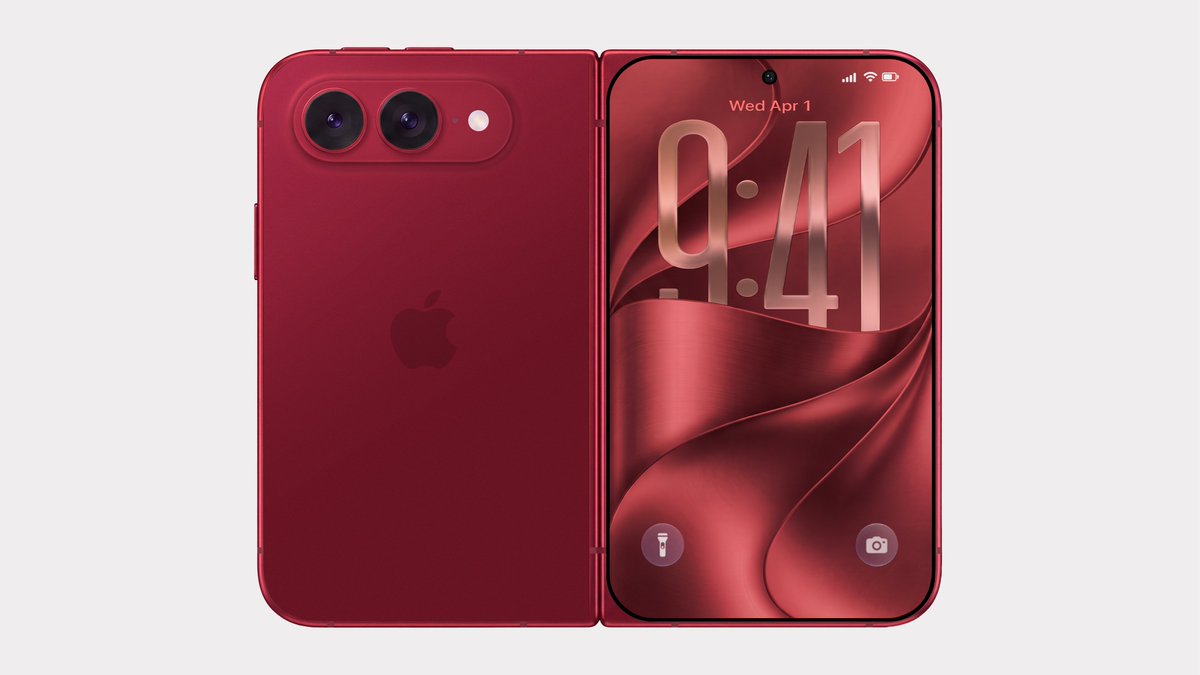 Bloomberg's Mark Gurman has disputed the authenticity of iPhone Ultra renders shared by the usually reliable leaker Evan Blass on X (Twitter). The images show the unreleased foldable iPhone in not just the rumored space gray and white colors, but also in a striking red. Bloomberg's Mark Gurman has disputed the authenticity of iPhone Ultra renders shared by the usually reliable leaker Evan Blass on X (Twitter). The images show the unreleased foldable iPhone in not just the rumored space gray and white colors, but also in a striking red.
|
|
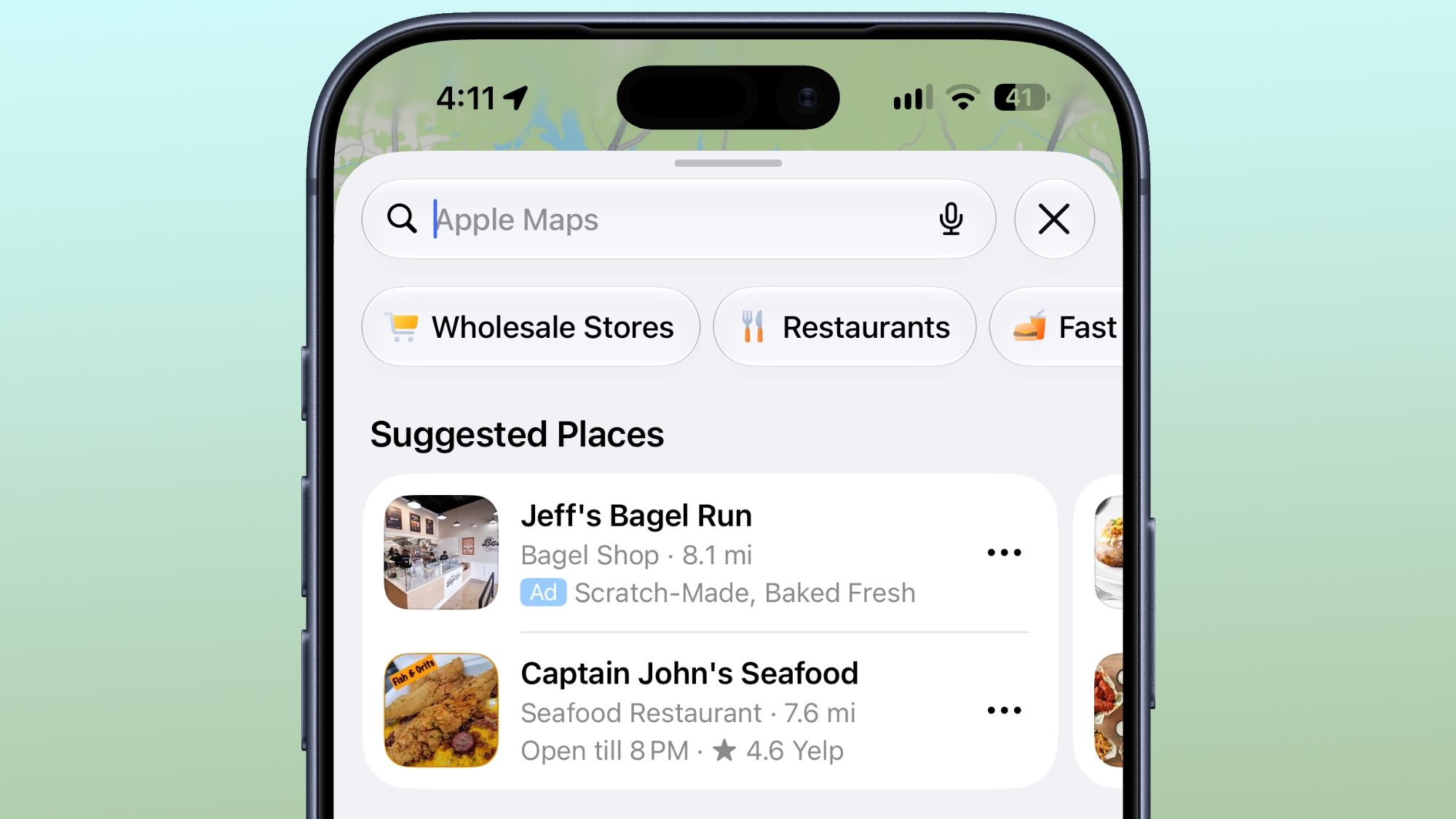 Ads in Apple Maps are live in the United States and Canada, which means iPhone and iPad users will see them when searching for locations and when viewing Suggested Places. Ads in Apple Maps are live in the United States and Canada, which means iPhone and iPad users will see them when searching for locations and when viewing Suggested Places.
|
|