|
 LG is hosting a Labor Day sale on its website this week, with deals on monitors, TVs, home appliances, and more. LG's discounts have been automatically applied and do not require any discount codes or special memberships. LG is hosting a Labor Day sale on its website this week, with deals on monitors, TVs, home appliances, and more. LG's discounts have been automatically applied and do not require any discount codes or special memberships.
|
|
NEW RESOURCES The Register: Browser fingerprint tool shows how easy you are to track using the latest sneaky tricks. "Unlike some other available tools that do the same, Glassbox provides a whole […]
|
|
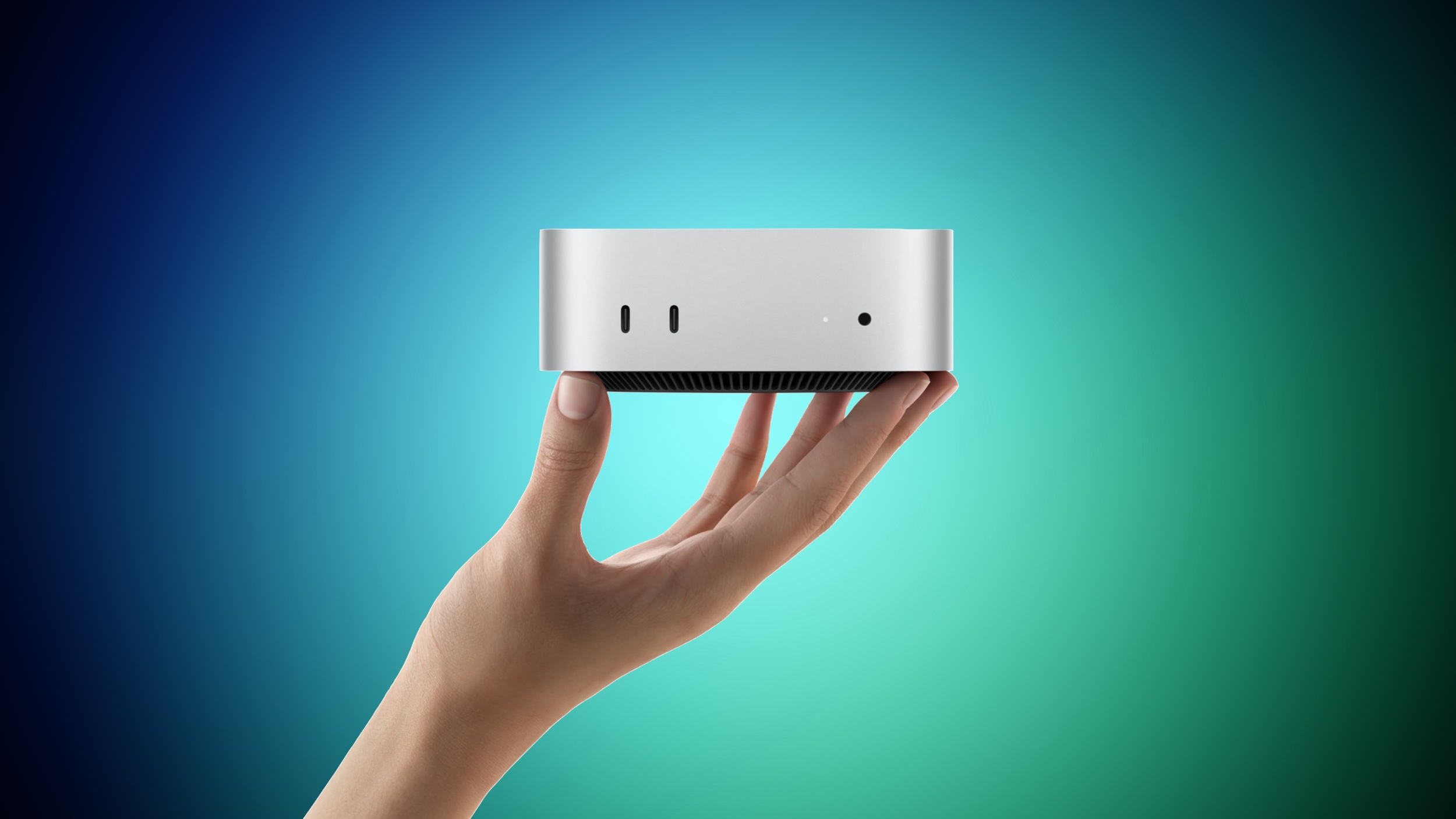 Apple yesterday announced the new Mac mini and Mac Studio, and pre-orders have begun on each device ahead of their September 22 launch date. We aren't currently tracking any straight cash discounts on pre-orders, but Best Buy is offering some money back in the form of Best Buy rewards when ordering. Apple yesterday announced the new Mac mini and Mac Studio, and pre-orders have begun on each device ahead of their September 22 launch date. We aren't currently tracking any straight cash discounts on pre-orders, but Best Buy is offering some money back in the form of Best Buy rewards when ordering.
|
|
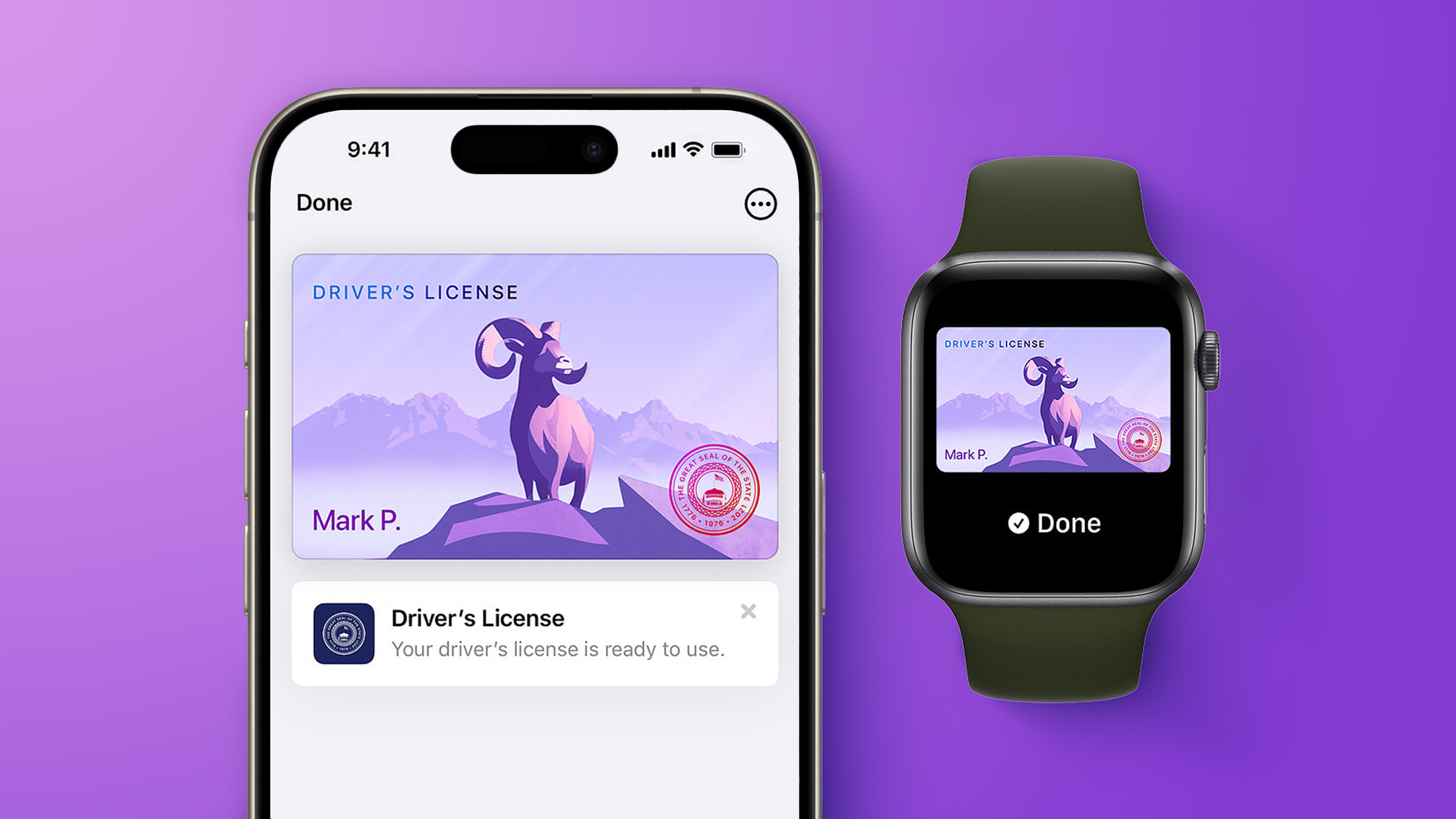 Starting today, Virginia residents can add a digital version of their driver's license to the Apple Wallet app on the iPhone and Apple Watch. The digital ID can be used to display proof of identity or age at TSA checkpoints in select airports, at select businesses, and in select apps, but the number of places where it is accepted is still quite limited. Starting today, Virginia residents can add a digital version of their driver's license to the Apple Wallet app on the iPhone and Apple Watch. The digital ID can be used to display proof of identity or age at TSA checkpoints in select airports, at select businesses, and in select apps, but the number of places where it is accepted is still quite limited.
|
|
Traditional operating systems (OS) were built to manage hardware, files, apps, and users on a device, but Cloudflare says the agentic AI era requires a whole new format.
The company this week announced Cloudflare OS, which connects AI agents, enterprise data and context, internal systems, and workflows together in one secure workspace. It is open source and browser-based, sparing companies the need to build all-new infrastructure.
The OS is launching alongside several other new security, identity, spending, and user insight tools that Cloudflare has built for the AI-based workplace.
"Cloudflare OS isn't a traditional desktop OS," said Rita Kozlov, VP of product at Cloudflare. "It reimagines the workplace computing environment for AI."
Open source OS runs in a browser
Cloudflare OS serves as a secure, AI-equipped workspace that is plugged into internal company systems. Available now through Cloudflare's open source repository, it is accessible directly in a browser, and runs inside an enterprise's Cloudflare account.
|
|