|
 Apple has announced that it will be holding an event on Wednesday, September 9 at 10 a.m. Pacific Time, with the company widely expected to unveil the iPhone 18 Pro, iPhone 18 Pro Max, its first-ever foldable iPhone, and more. Apple has announced that it will be holding an event on Wednesday, September 9 at 10 a.m. Pacific Time, with the company widely expected to unveil the iPhone 18 Pro, iPhone 18 Pro Max, its first-ever foldable iPhone, and more.
|
|
TIME reveals the fourth annual TIME100 AI list, recognizing the 100 most influential people in artificial intelligence.
|
RELATED ARTICLES | | |
|
TIME reveals the fourth annual TIME100 AI list, recognizing the 100 most influential people in artificial intelligence.
|
|
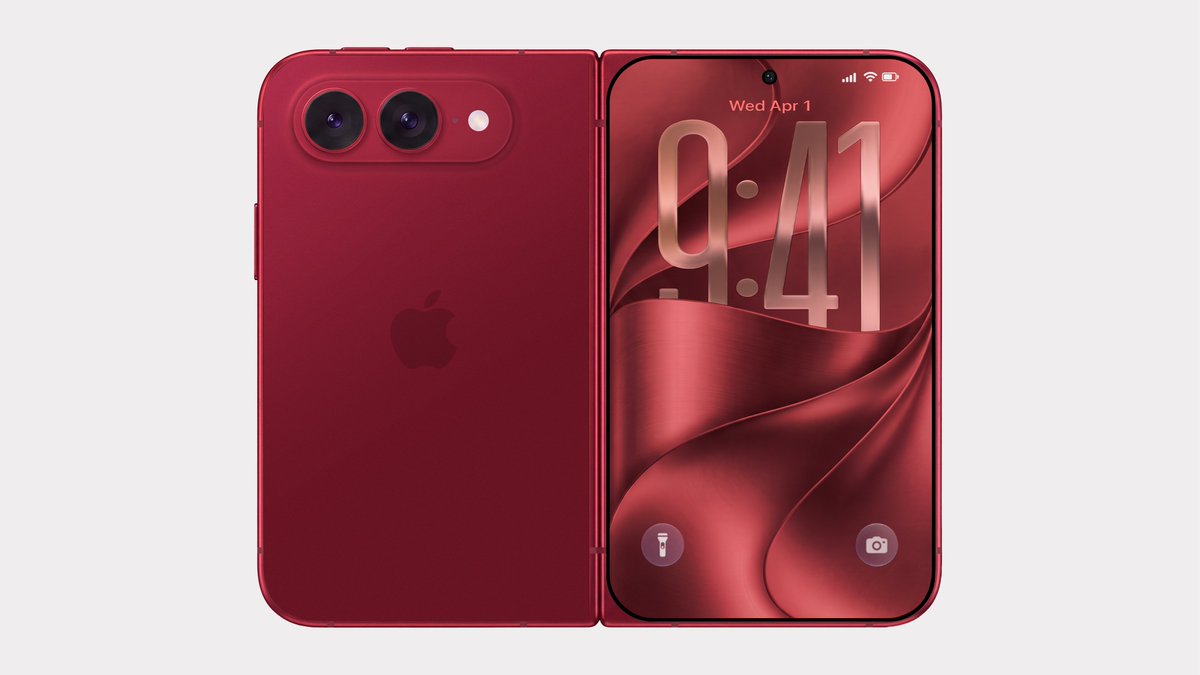 Bloomberg's Mark Gurman has disputed the authenticity of iPhone Ultra renders shared by the usually reliable leaker Evan Blass on X (Twitter). The images show the unreleased foldable iPhone in not just the rumored space gray and white colors, but also in a striking red. Bloomberg's Mark Gurman has disputed the authenticity of iPhone Ultra renders shared by the usually reliable leaker Evan Blass on X (Twitter). The images show the unreleased foldable iPhone in not just the rumored space gray and white colors, but also in a striking red.
|
|
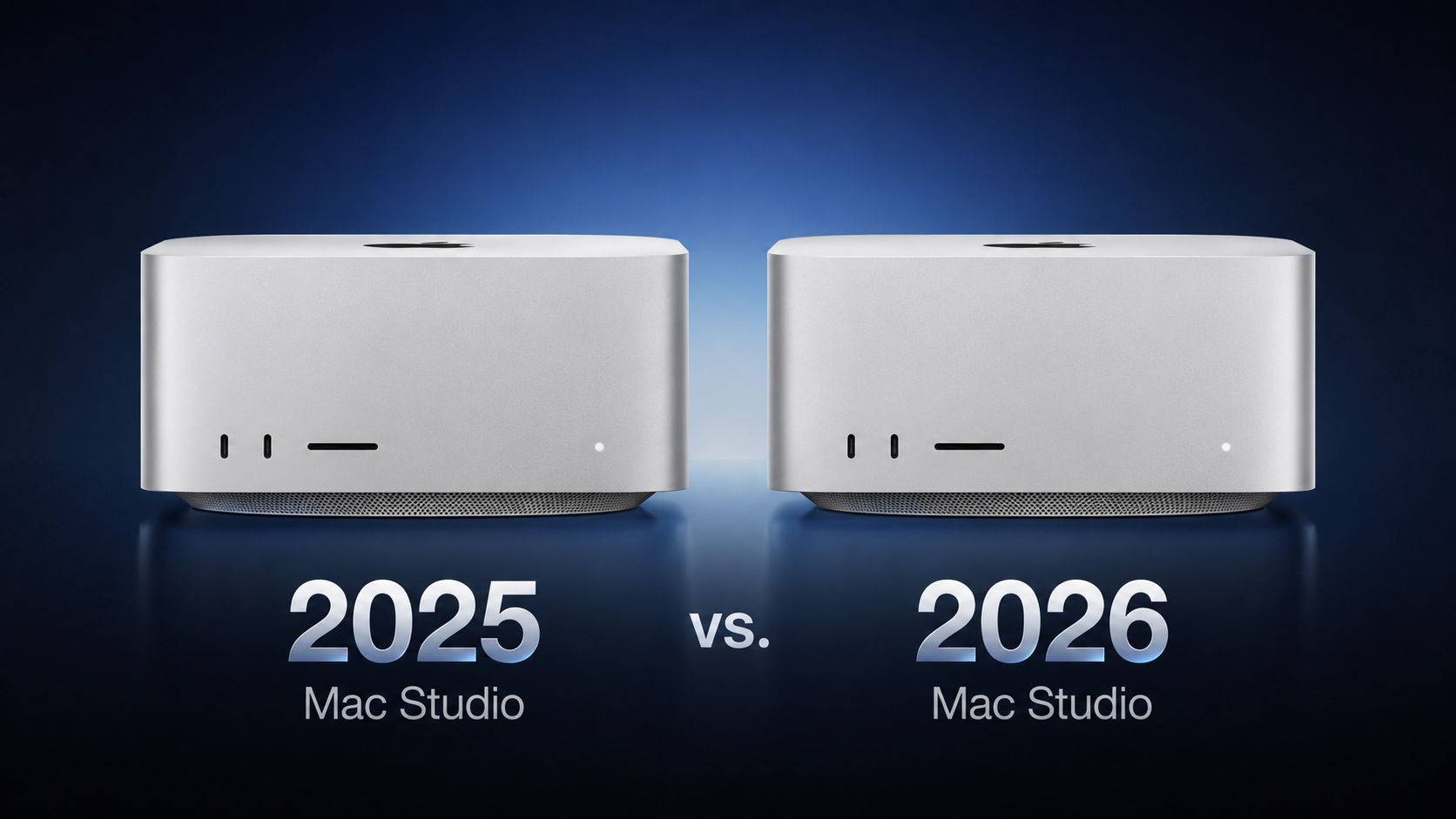 Apple this week announced a new Mac Studio with the M5 Max and M5 Ultra chips, discontinuing the M4 Max and M3 Ultra models that had been on sale since March 2025. Apple this week announced a new Mac Studio with the M5 Max and M5 Ultra chips, discontinuing the M4 Max and M3 Ultra models that had been on sale since March 2025.
|
|
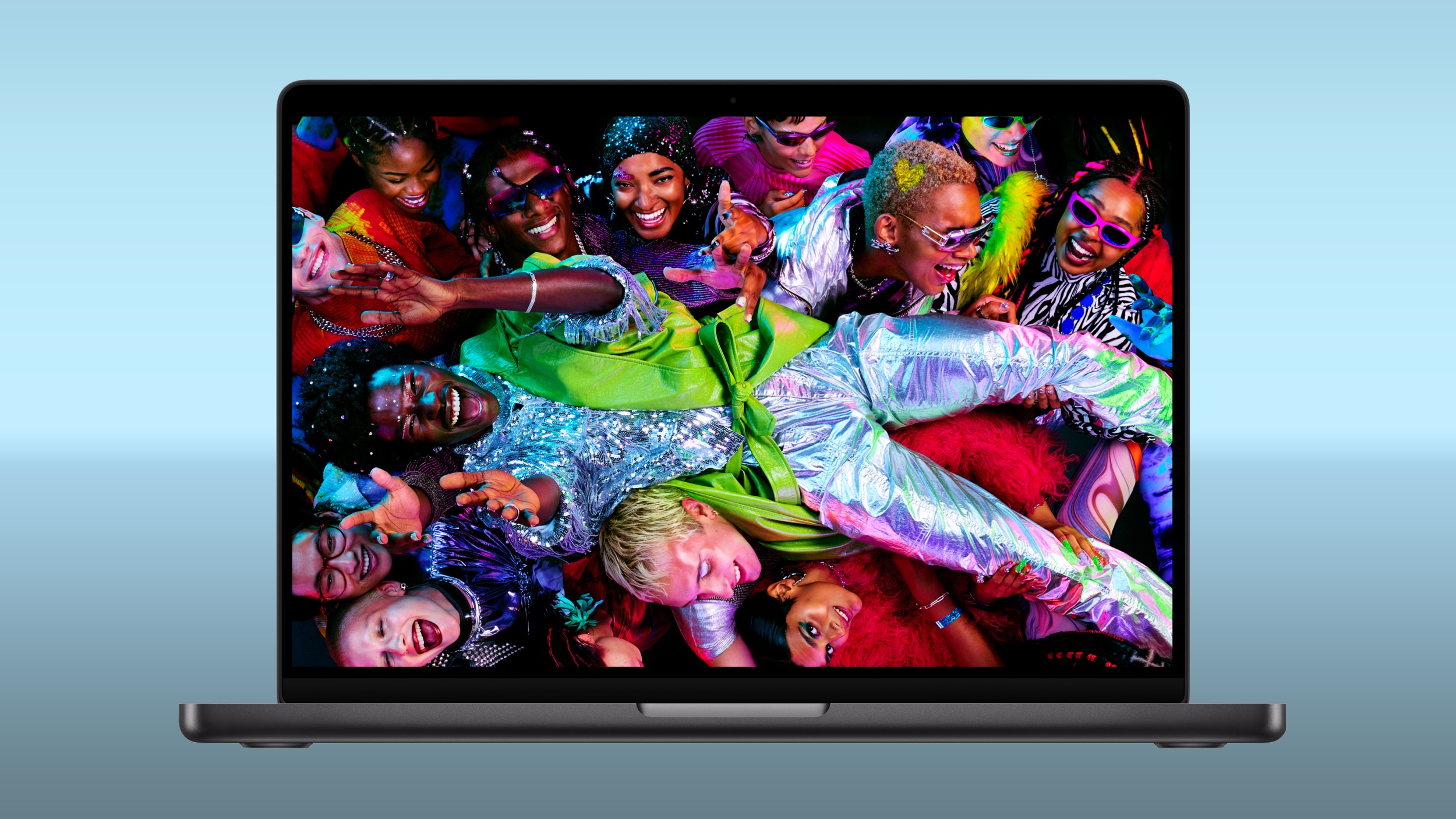 Amazon and Best Buy today have big discounts on the M5 Pro and M5 Max MacBook Pro, with up to $500 off select models. A handful of models have better discounts when compared to the last time we tracked these deals, coming in as much as $100 off previous price points. Amazon and Best Buy today have big discounts on the M5 Pro and M5 Max MacBook Pro, with up to $500 off select models. A handful of models have better discounts when compared to the last time we tracked these deals, coming in as much as $100 off previous price points.
|
|
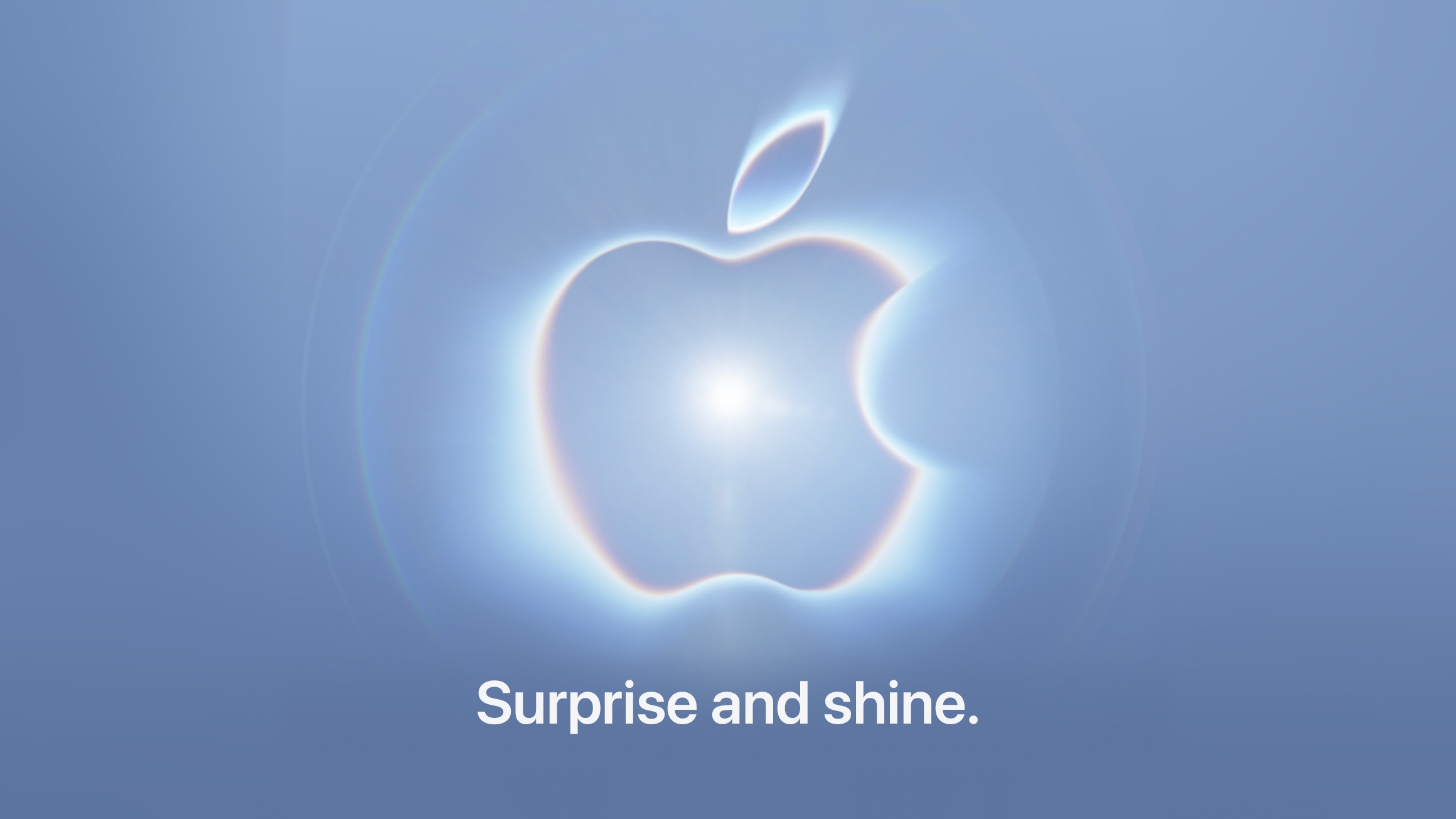 Apple today announced it will hold its annual iPhone-centric event on Wednesday, September 9 at 10 a.m. Pacific Time. In the U.S. and several other countries, Apple used "Surprise and Shine" as its tagline for the event, but in other countries, the tagline isn't a literal translation. Apple today announced it will hold its annual iPhone-centric event on Wednesday, September 9 at 10 a.m. Pacific Time. In the U.S. and several other countries, Apple used "Surprise and Shine" as its tagline for the event, but in other countries, the tagline isn't a literal translation.
|
|
 Meta today said it will implement major changes to Facebook and Instagram's child safety features as part of a settlement agreement with almost all U.S. states. Meta today said it will implement major changes to Facebook and Instagram's child safety features as part of a settlement agreement with almost all U.S. states.
|
|
Meta agreed to set more time limits and enhance protections in its platforms for young users, but was short on some specifics.
|
|
OpenAI is adding a new safety capability that allows enterprises to detect misuse of its AI systems across multiple interactions without retaining prompts or responses, enabling risk monitoring while preserving its Zero Data Retention (ZDR) commitments.
"OpenAI does not retain…prompts or model responses after a request is processed," the company said in a blog post, describing its ZDR approach. The new system, called Private Safety Processing, is "designed to identify patterns across related interactions without giving OpenAI personnel access to the underlying content."
The capability is being tested with eligible enterprise and API customers and is intended to address a limitation in existing safety controls that evaluate interactions individually, making it harder to detect risks that unfold over time.
What does Private Safety Processing do
Private Safety Processing is designed to extend existing safety systems by correlating activity across related interactions rather than analyzing each prompt in isolation, according to OpenAI.
Under the model, automated systems analyze interactions and generate "a narrowly defined signal indicating the type of activity involved," instead of exposing the underlying prompts or responses, according to OpenAI.
The system can o
|
|
The new Google Pixel 11 Pro XL doesn't dramatically reinvent the company's flagship smartphone formula. From a hardware perspective, this year's model represents an incremental update. But after spending time with Google's latest full-featured Pixel, I've found that some of its most meaningful improvements for business users aren't necessarily the things that stand out on a spec sheet or benchmark chart.
Starting at $1,299 with 256GB of storage, the Pixel 11 Pro XL features a 6.8-in. Super Actua LTPO OLED display, Google's new Tensor G6 processor, a 5115mAh battery and an updated triple-camera system. Google also pledges seven years of operating system, Android security and Pixel Drop updates.
The hardware is very good, but Google's deeper integration of Gemini with Android and other thoughtful software features are what make this device more interesting.
Tensor G6 performance: The numbers don't tell the whole story
Google's Tensor processors have never been benchmark chart-toppers, and the Tensor G6 doesn't change that. In Geekbench 6, the Pixel 11 Pro XL scored 2,736 single-core and 7,399 multi-core numbers. That's a healthy improvement over the Pixel 10 Pro XL's 2,326 and 6,413, respectively, but well behind devices like Samsung's Galaxy S26 Ultra (at 3,683 and 11,243) powered by Qualcomm's latest SoCs.
|
|
It's a sign of the times: Security conference DefCon has added smart glasses to its list of banned audio- or video-recording devices.
The organizers have said that, with no consistent way to understand whether smart glasses are recording or not, they have taken the step to ban them in their entirety on the grounds that they erode trust and invade people's privacy.
Putting corrective lenses in the smart glasses will be no excuse: DefCon insists that visitors bring a pair of glasses without the smarts instead.
The smart glasses ban has been added to DefCon's already strict rules on photography, which among other things ask visitors not to take group shots and to use "portrait" mode (or a low F-stop for those with old-fashioned cameras) to focus on the foreground, so that people in the background appear blurred.
The smart glasses market has gone up a notch lately. Google and Samsung have both announced Gemini powered eyewear running on Android. Apple is looking to launch its new generation of smart glasses next June, citing privacy concerns as the reason for the delay.
|
|
Because of these limitations, I use ShareX instead for more complicated or precise screen captures. As well as capturing GIFs, ShareX offers significantly more advanced features, including precise capture with a magnifier, scrolling screenshot capture, and timed capture. ShareX even lets you add annotations like arrows, lines, and text bubbles to screenshots. And another great thing… it's totally free!
Here I'll show you how to use the highly coveted GIF recording function.
What to do:
Download, install, and run ShareX.
Type Ctrl Shift Print Screen. A crosshair will appear on your screen.
Now select the part of your screen you want to record a GIF with by moving the crosshair over it—it will automatically select the window or area surrounding your cursor. Click your mouse to begin recording.
To stop recording you can either type the shortcut again (Ctrl Shift Print Screen) or hit the stop button in the ShareX media control bar.
|
|